Calendar and leave
Your connected calendars, the team’s leave, and your own memos — on one page.
Calendar has four tabs: My Calendar, Scheduling, Leave Calendar and My Notes. Task dates stay in Tides. Tracked hours stay in TurtleTime. This page does not copy those calendars.
My Calendar
My Calendar shows the signed-in user’s connected external calendars for the visible range. Month, Week, Day and Agenda are available. Week is a 24-hour grid. Select a day, or More on a crowded day, to open the On this day panel. Open a record for the full title and an Open in… action back to the source. The tab remembers the view you last used.
Scheduling
Scheduling is where you publish booking links and set the hours you can be booked. Save working hours, create a booking link for a meeting type, and copy it to send to someone. The team availability overlay shows when other people are free. Schedule meeting, on the calendar toolbar, books against those links. A booking does not create a Tides task or a time entry.
Leave Calendar
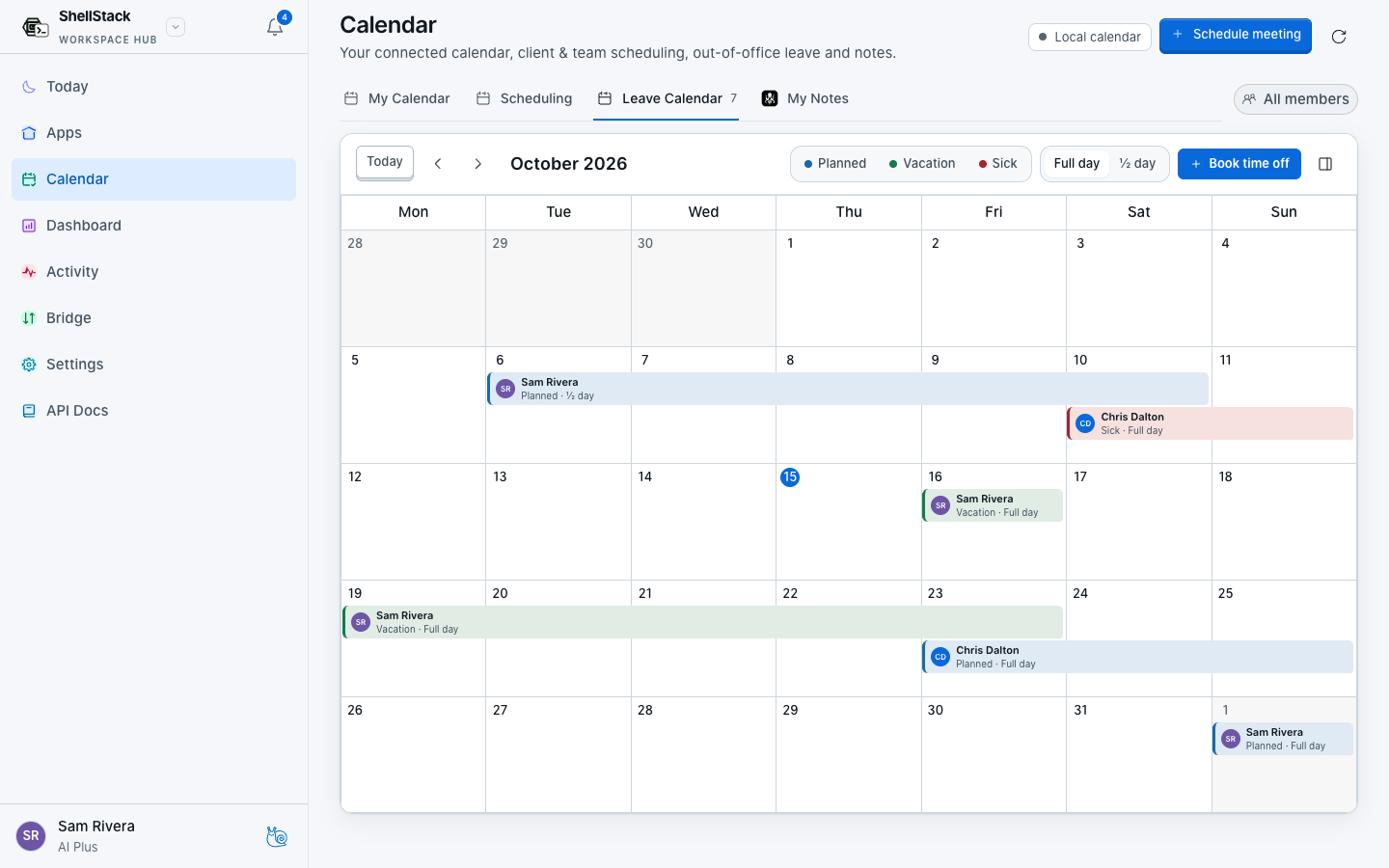
- Open Leave Calendar It stays on the month. Each bar is one person’s leave: colour, avatar, name, type and duration.
- Choose Full day or ½ day The toggle applies to the next leave you add.
- Book time off Press Book time off and set the type — planned, vacation or sick — the dates and a note. You can also drag a type onto a day. You can only create leave for yourself.
- Edit or move your own rows Drag one of your bars to another day. Open it to change the type, full or half day, the start and end, and the note, or to remove it. Other people’s leave is visible and cannot be edited.
All members is the people filter. An empty selection means everyone. Narrow it when you only want a few people on the month.
My Notes
My Notes shows your own Kraken memos. Month, Week, Day and Agenda are available. Editing the note itself is done in Kraken → Memo. Dated memos also appear here so the suite calendar can show them beside leave and external events.